How to Schedule Your First Post
Write a post, pick a time, hit schedule. Plus the four things that quietly decide whether that Schedule button works at all.

Quick guide
Hit New post, pick your accounts, write the thing, flip When to Schedule, choose a time, then press Schedule post.
- Connect at least one social account. Until you do, the composer stays locked.
- Press New post and tap the accounts you want in the Posting to row.
- Write it. The counter shows the limit for whichever account you're previewing.
- Add an image or video if you picked Instagram, Pinterest or TikTok. Those three won't take text on its own.
- Under When, switch to Schedule and pick a time, or tap one of the Best times chips.
- Press Schedule post. It waits under the Scheduled tab until its turn.
The full walkthrough is below.
Scheduling is usually the first thing people want from a social tool, and it's also the first place a tool can waste your afternoon. You write something you're happy with, hit the button, and only then find out one of the networks won't take it.
So this guide does two things. It walks you through your first scheduled post in Hyvo, and it explains the four things that decide whether the post can go out at all: a connected account, the character limit, whether the network needs a picture, and the time itself. Once those click, every post after this one takes about thirty seconds.
First, you need one account connected
Hyvo posts through your own accounts, so it can't do anything until at least one is linked. Open the composer without one and you'll see it sitting there, greyed out, with a single way forward.
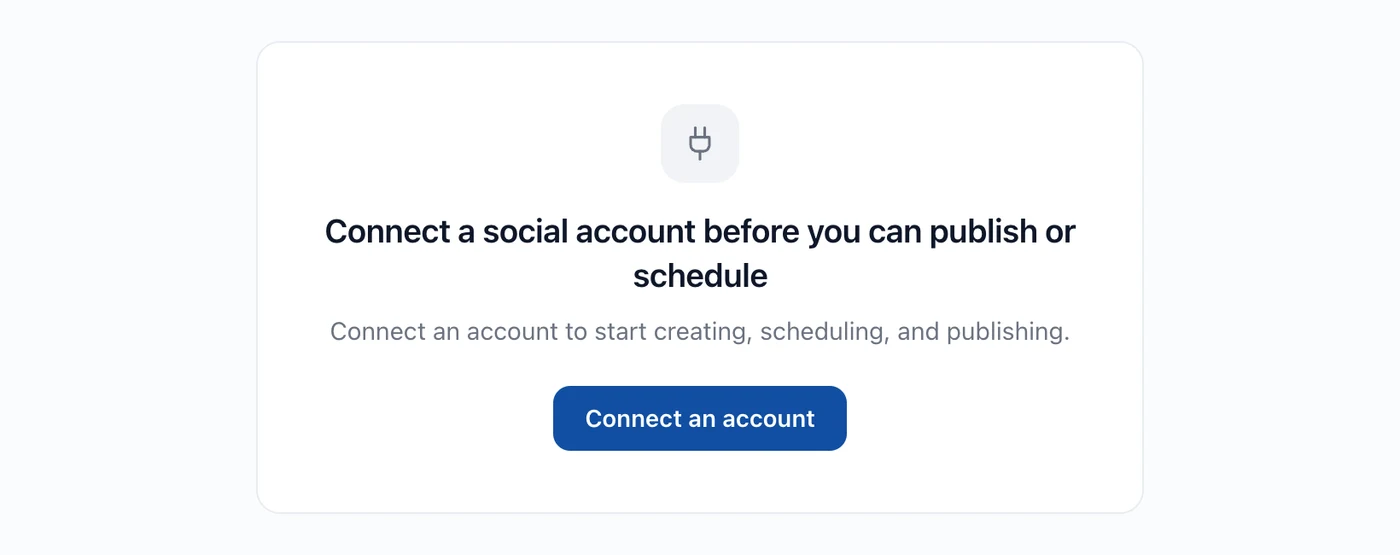
The networks to choose from are X, LinkedIn, Instagram, Threads, Facebook, TikTok, Pinterest, Bluesky and Mastodon. The free plan lets you connect three of them, and X comes with Premium.
Step 1: Open the composer and pick where it's going
New post lives in the left rail, so it's there from whatever screen you're on. The first row you'll see is Posting to: every account you've connected, as a row of avatars. Click one to select it, click again to drop it.
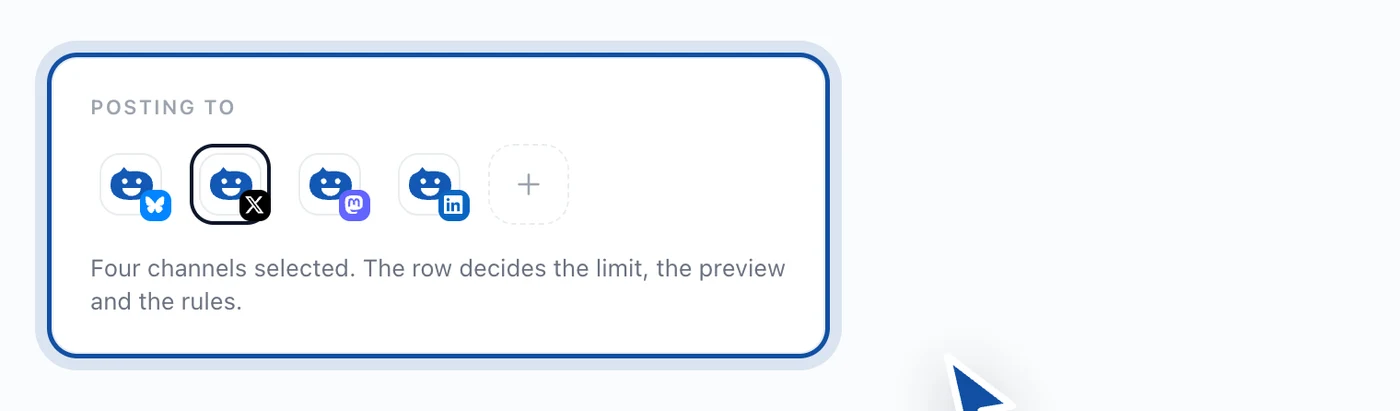
Worth slowing down here for a second. Picking an account changes three things at once: which limit the counter enforces, which layout the preview draws, and whether the post needs a photo before it'll go anywhere.
Step 2: Write it, and watch the counter
Type in the big field. The number underneath isn't a rough estimate. It's the exact limit the server will hold you to for that specific account.
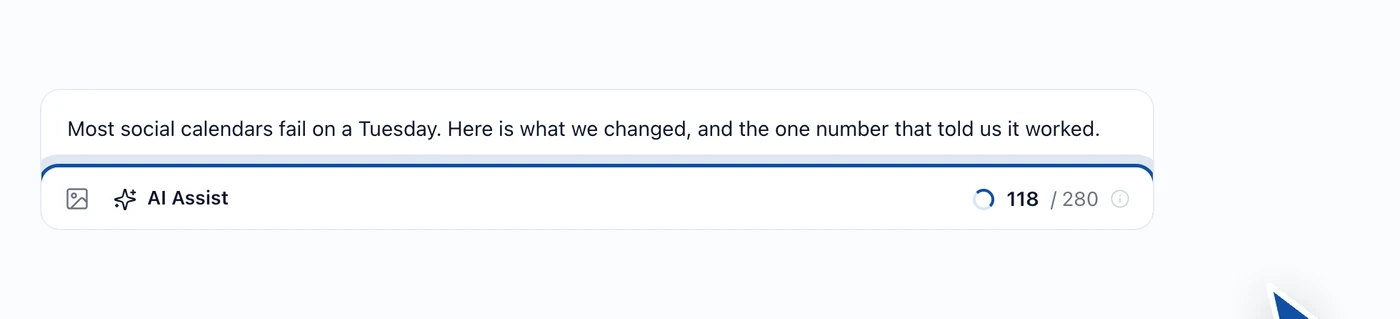
The limits are far enough apart to catch you out. X starts at 280 characters. Bluesky gives you 300, Threads and Mastodon 500, Instagram 2,200, LinkedIn 3,000. And they're read per account, not per network, so if you pay for X Premium and get a bigger allowance, that's the number you'll see.
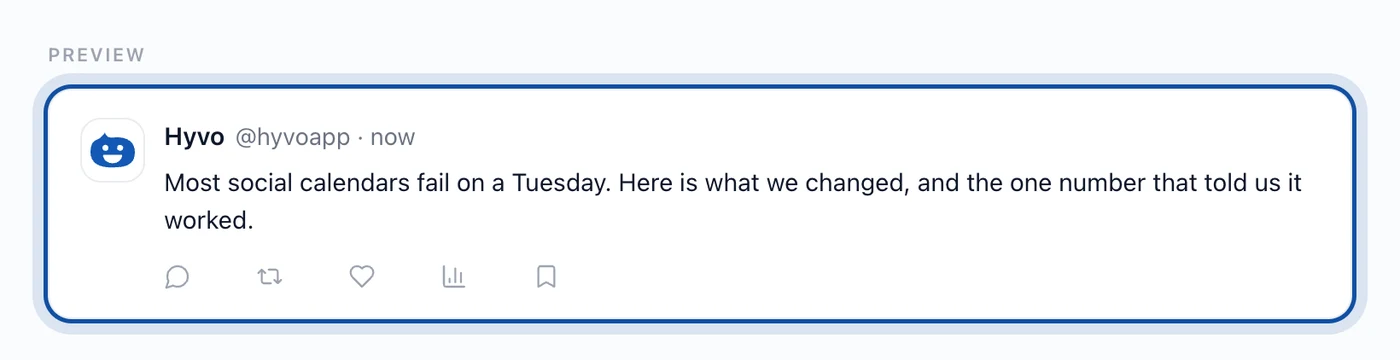
Give the preview a glance before you schedule anything. It draws line breaks, links and truncation the way the network actually will, which catches the sort of thing you'd otherwise only notice after it went live.
Step 3: Add a photo or video if the network needs one
Three networks have no text-only post at all. Instagram and Pinterest want an image, TikTok wants a video. That's their API, not something we chose, so there's no talking them round.
The image button sits under the text field. If you've picked one of those three and attached nothing, the publish and schedule buttons stay greyed out and the footer tells you which network is holding things up.

Step 4: Pick when it goes out
The When row gives you two choices. Publish now sends it straight away. Schedule parks it until a time you pick.
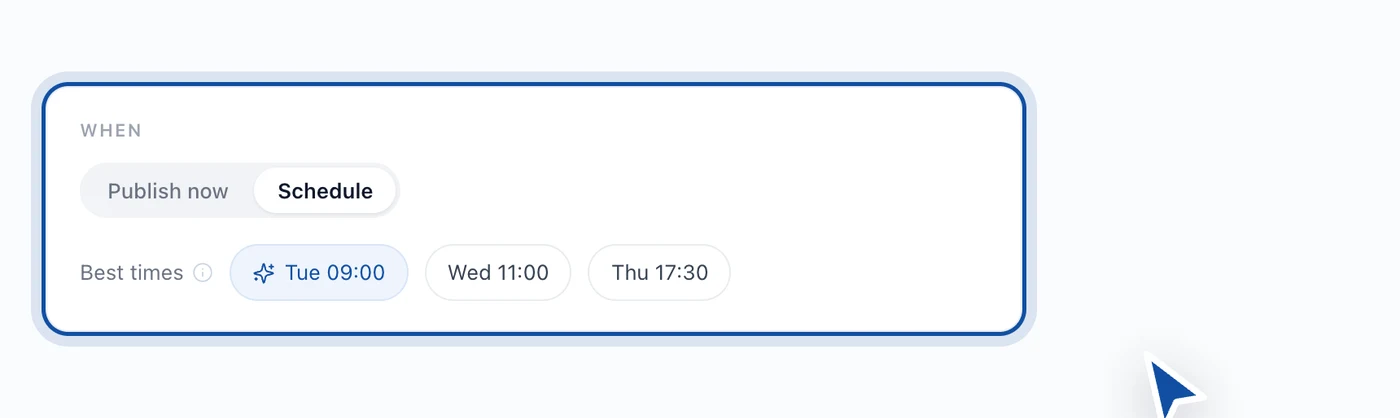
A word on those Best times chips. They're shortcuts to slots that have done well for your accounts before. Early on, with barely any history behind them, treat them as a decent guess rather than a finding. Give it a few weeks of posts and what the numbers say about timing gets a lot more useful.
Step 5: Schedule it
Press Schedule post. Hyvo stores it, and the post moves to the Scheduled tab on the Posts screen, where it sits until its time comes up. Nothing else is needed from you. You can close the tab, shut the laptop, go to bed.
You can still change your mind afterwards. Editing, moving and deleting a queued post are all covered in managing scheduled content.
Mistakes people make the first few times
- Writing to the wrong limit. The counter follows whichever account is in the preview. Drafting 900 characters with X previewed and then switching to LinkedIn is fine. The other way round is how posts get cut off.
- Leaving every account ticked. The composer starts with all of them selected, which is handy right up until an Instagram-shaped post lands on LinkedIn. Untick what doesn't fit.
- Scheduling into the past. A time that's already gone isn't a queue entry. Pick something ahead of now.
- Mixing up drafts and schedules. Save draft and Schedule post do two different things. A draft sits on the Drafts tab doing nothing at all.
If the Schedule button won't light up
The footer line will tell you which one it is, but here they are roughly in order of how often they come up:
- Nothing's selected in the Posting to row. Pick at least one account.
- The post is empty, or one channel's version is.
- A channel is over its limit. The footer names it and says by how much.
- Instagram, Pinterest or TikTok is selected and there's no file attached.
- Something is still uploading. Wait for the thumbnail to settle.
FAQs
Do I need to leave Hyvo open for a scheduled post to go out?
No. Once it's scheduled it's stored on our side and published at its time whether or not you're signed in.
Can I schedule one post to several networks at once?
Yes. Tick several accounts in the Posting to row and they all get it. If one needs different wording, you can write a version just for that channel. scheduling across multiple platforms covers how.
Can I edit a post after I've scheduled it?
Right up until it publishes, yes. Open it from the Posts screen and change the text, move the time, or delete it. Once it's out, Hyvo can't edit it any more.
What if a network rejects the post at its scheduled time?
It shows up under the Failed tab with the platform's own reason attached, rather than just vanishing.
How many posts can I schedule on the free plan?
Twenty a month, across three connected accounts. Premium lifts both.
About the author

Founder, Hyvo
Subarna Basnet is the founder of Hyvo, an AI-powered platform helping businesses create, manage, and automate social media marketing. He writes about AI, social media automation, content creation, and marketing technology.