How to Manage Scheduled Content
Where queued posts live, how to change one before it goes out, and what to do about the ones a platform turned down.

Quick guide
Everything you've written lives on the Posts screen, split by status. Anything that hasn't published yet can still be rewritten, moved or deleted.
- Open Posts. The tabs are All, Published, Scheduled, Drafts and Failed.
- Scheduled is your queue. Drafts are unfinished. Failed is what a platform turned down, with its reason.
- Open a post to read it; the edit control on the row opens it in the composer.
- Published posts can't be edited. That's the platform's rule, not ours.
- Use Calendar for the same queue laid out by day, when you want to see shape rather than a list.
The full walkthrough is below.
A scheduling tool is easy to judge on the day you set it up. It's much harder to judge three weeks later, when there are forty things in flight and one of them is wrong.
This guide is about that second moment. Finding one specific post, changing it before it goes out, and reading the queue as a whole instead of as a list.
Where everything lives
The Posts screen is your library. Every post Hyvo knows about is in here, including ones you published from the network itself. Connected accounts bring their history across, so what you're looking at is your whole output, not just the bits Hyvo sent.
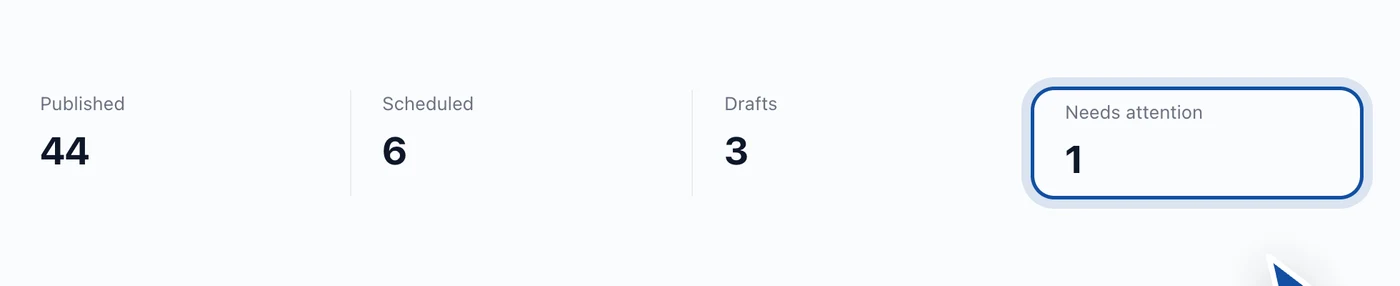
Underneath it, five tabs split the library by status:
| Tab | What's in it |
|---|---|
| All | Everything, newest first |
| Published | Live posts, including history brought in from connected accounts |
| Scheduled | The queue: written, timed, waiting |
| Drafts | Written, not timed, going nowhere until you say so |
| Failed | Posts a platform turned down, with the platform's own reason |
Each row shows the date and time, the account, the status, the opening of the post, and, once it's live, the numbers the network reported back.

Finding one specific post
Three controls sit above the list, and all three are real queries against the database rather than filters over whatever happened to load:
- Search matches the text of the post.
- Platform narrows to one network, and only shows up once you've got more than one connected.
- List or grid changes the layout. Grid's easier when you're scanning pictures, list's easier when you're scanning times.
Changing a post before it goes out
Clicking a row opens the post so you can read it. To change one, use the edit control that appears on the row. It's there for anything that hasn't published yet, and it opens the composer again with your text loaded and a footer offering exactly what you're allowed to do.
- Rewrite it. Each channel keeps its own copy, so a post going to four networks has four tabs. Editing one leaves the others alone.
- Move the time. Press Schedule… and pick a new one. It stays in the queue at the new slot.
- Send it now. Publish now skips the queue entirely.
- Bin it. Delete removes it, and a deleted scheduled post doesn't publish.
- Park it. Save draft takes it out of the queue without deleting it. It moves to Drafts and waits.
Reading the queue as a calendar
The list is great at "what's next" and terrible at "is next week thin". For the second question, Calendar lays the same posts out by day.
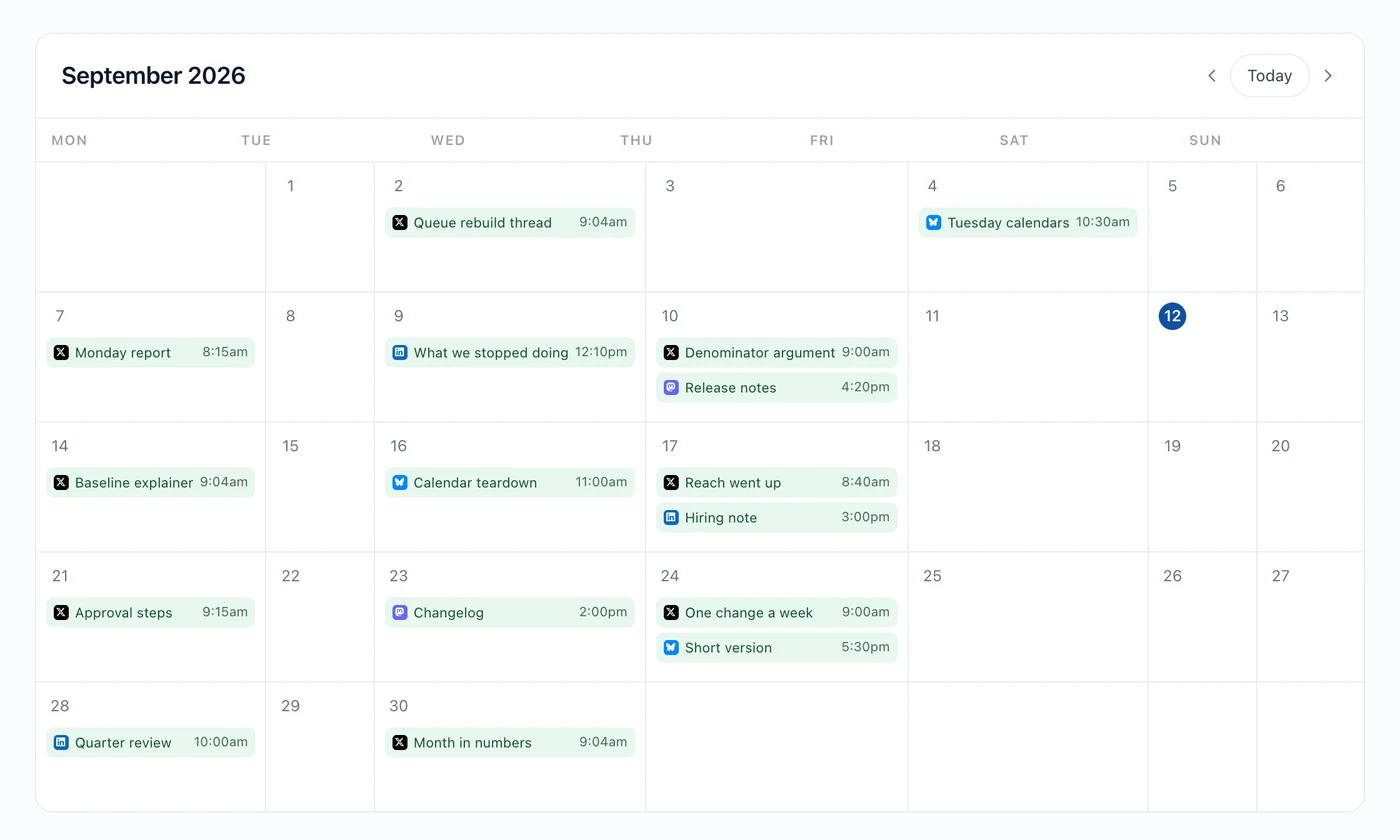
Gaps are the useful bit here. Three posts on Tuesday and then nothing until the following Monday is invisible in a list and impossible to miss in a grid. Getting a queue that reads evenly is what building a content calendar is about.
What the Failed tab is telling you
A failed post is one a platform refused at publish time. We show you the platform's own message instead of a generic error, because nine times out of ten the message is the fix.
The three that come up most:
- The connection expired. Networks time out access every so often, and some do it on a fixed schedule whether you've been active or not. Reconnect the account and the post can go again.
- The content broke a rule. Length, a media format, or something the network's own policy filter caught. The message will name it.
- The account lost a permission. Usually a Page or Business account where somebody's role changed on the platform's side.
None of these lose your work. The post stays in the library with its text intact, so fixing the cause and republishing takes about two minutes instead of a rewrite.
Habits worth picking up
- Keep a drafts shelf on purpose. Half-finished posts beat a blank page every time. Writing four and scheduling two makes for a better week than writing two and scheduling two.
- Check the queue weekly, not daily. The whole point of scheduling is not thinking about it every day. One pass over Scheduled and Failed each week is plenty.
- Delete rather than let something wrong go out. A queued post you've changed your mind about costs nothing to remove.
- Watch the Needs attention count. That's the summary's way of saying something in the library wants a decision from you.
A few things you can't do
- Published posts can't be edited or moved.
- One post has one scheduled time across all its channels. Staggering means separate posts.
- Deleting a post in Hyvo after it's published doesn't delete it from the network.
FAQs
Can I move a post without rewriting it?
Yes. Open it, press Schedule…, pick the new time. Nothing else changes.
What happens to a scheduled post if I disconnect the account it was going to?
It's got nowhere to publish. Reconnect the account before its time comes up. A post's destinations are fixed when it's written, so switching it to a different account means deleting it and writing a new one.
Do posts I published directly on the network show up in Hyvo?
Yes. Connected accounts bring their existing history across, so the Published tab reflects everything you've put out, not just what came through Hyvo.
Is there a cap on how many posts I can have queued?
The free plan includes 20 posts a month; Premium is unlimited. The queue itself isn't capped separately.
Can I see scheduled and published posts together on the calendar?
Yes. The calendar draws from the same library the Posts screen does.
About the author

Founder, Hyvo
Subarna Basnet is the founder of Hyvo, an AI-powered platform helping businesses create, manage, and automate social media marketing. He writes about AI, social media automation, content creation, and marketing technology.